| CFS:
Using Converted Aircraft for Computer-Generated Opponents
by Peter "Fighterjock" Waddell |
||||
|
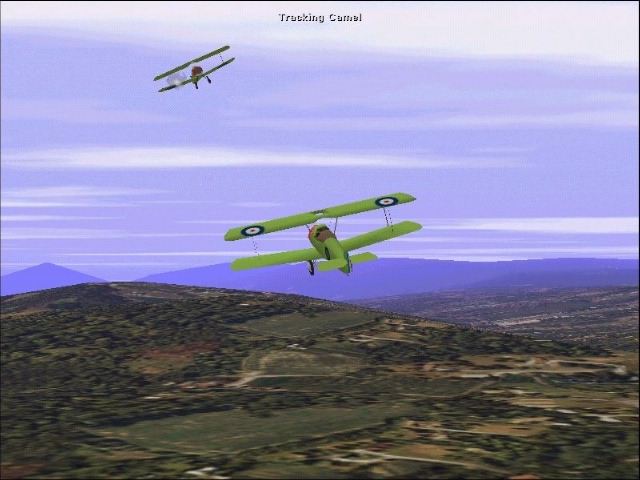
Combat Flight Simulator's computer- generated aircraft programming code (AI) is designed to fly specific Combat Flight Simulator aircraft. However, it is possible to add some FS98 and converted aircraft to your list of enemy computer-generated aircraft. To do this, you must edit the CFS\QuickCom\qc_plane.qcb file. These instructions assume that the aircraft that you want to use as enemy aircraft have already been converted/imported into Combat Flight Simulator. If you are ready to try a camel vs camel battle, just download this zip file by clicking HERE and get ready for some fun. What? You need some aircraft to tinker with? Go HERE. To learn how to edit files to create new AI aircraft, read on! Caution: This feature is not supported by Microsoft(r) AnswerPoint or Product Support Services. 1. Go to your CFS\Aircraft folder and note the aircraft's folder name, e.g., the folder name for FS98 Extra 300 is Extra300. In the instructions below, the folder name will be referred to as Folder. 2. Make a copy of your CFS\QuickCom\qc_plane.qcb as a backup. The original qc_plane.qcb file can be recopied from the Microsoft(r) Combat Flight Simulator CD-ROM if necessary. 3. Open CFS\QuickCom\qc_plane.qcb in any text editor. To add an aircraft as its own menu item: 1. Find and then Copy and Paste the entry for the Ju88a. It reads:
2. In the first line, change the 26 to the next unused number, 27 if this the first time you are editing the file. 3. Edit the second line so that it reads: OptionName=%FolderOption%, where Folder is the folder name of the aircraft you want to add. 4. Edit the third line so that it reads: aircraft.0= Folder 5. If you want your aircraft to fly as a fighter, edit the fourth line so that it reads: family_type.0=1 If you want your aircraft to fly as a bomber, edit the fourth line so that it reads: family_type.0=2 6. Edit the last line to read: name.0=%FolderName% 7. Go to the [strings] section at the end of the file and add the following lines: "FolderOption"= menu name, where menu name is the name you want to appear in the Quick Combat menu. "FolderName"=label name, where label name is what you want to appear on the aircraft labels within the simulation. 8. Save the file and start Combat Flight Simulator. For example, the entry for adding the FS98 Extra 300 as a fighter would be:
|
To add an aircraft as part of a larger category: 1. Find the category you would like to add the aircraft to (you can get the category name from the OptionName field) and then Copy and Paste the first aircraft entry in that category. For example, in the Allied Fighters category, the first aircraft entry is for the Supermarine Spitifre Mk I; it reads:
2. In the above example, 0 is being used to enumerate the aircraft. Find the next unused number in the category you want to edit. Enter 6 if this the first time you are editing the Allied Fighters category in the file. In the instructions below, this number will be referred to as #. 3. Edit the first line so that it reads: aircraft.#= Folder, where Folder is the folder name of the aircraft you want to add. 4. If you want your aircraft to fly as a fighter, edit the second line so that it reads: family_type.#=1 If you want your aircraft to fly as a bomber, edit the second line so that it reads: family_type.#=2 5. Edit the last line to read: name.#=%FolderName%
6. Go to the [strings] section at the end of the file and add the following lines: "FolderOption"= menu name, where menu name is the name you want to appear in the Quick Combat menu. "FolderName"=label name, where label name is what you want to appear on the aircraft labels within the simulation. Strings don't need to be repeated if an aircraft has already been added as its own menu item. 7. Save the file and start Combat Flight Simulator For example, the entry for adding the FS98 Extra 300 as a fighter in the Allied Fighters Category would be:
Ready for some more fun? There is a bit of a trick to using the 3rd party aircraft in CFS. If you want them to shoot at you, you have to use one of the damage model files. Go to the model folder of the added plane and add B17 for a bomber type like this. Models file.
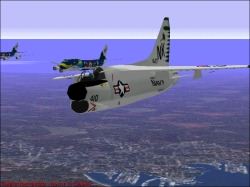
[models] Crash is the damage model and makes the aircraft aggressive as in it will shoot at you now. Check six! Er, well, I guess it isn't hard to miss a B17 on your tail! Download Peter's customized Sabre and MiG 15 and fly them in CFS: Sabre vs MiG 2 meg. (Editor's Note: Since this article first appeared, this file was updated Nov. 30/'98 with enhanced sound and a few other tweaks!)
|
|||
|
© 1997 - 2000 COMBATSIM.COM, INC. All Rights Reserved. Last Updated November 12th, 1998 |
||||