
| Falcon 4.0: F4LControl Utility by Douglas Cowan |
||||
|
F4LCONTROL is complete, and is by far the most powerful utility yet created for Falcon4. It Slices, It Dices! F4LCONTROL slices, dices and puts out the cat. It replaces the command line interface that controls graphics options, monitors IP settings necessary for online play, gives you directory access and file management powers, allows you to adjust and save your own settings for sky color and haze, batch converts RAW files to BMP files for easy access and even manages the graphics files created. Finally, F4LCONTROL intergrates a comprehensive version of TWS Tutor that includes the warning tones of naval radars. First a disclaimer: the utility does NOT use program source code from Falcon 4.0 -- it is entirely my own work. I don't have access to Falcon's source code (and let's be honest here -- I don't want such access), and I have not disassembled the Falcon program in any way, shape or form. 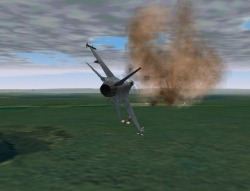 In order to connect with another Falcon4 player you must find the IP information under WIN95/98 using WINIPCFG. F4LCONTROL does this for you, gleaning the IP information from your system and allowing you to quickly copy the settings with minimal effort. F4LCONTROL also integrates a ping utility, testing your connection and informing you as to its quality.
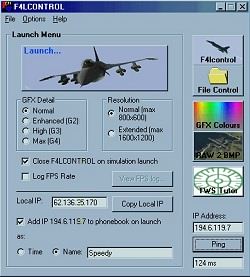 Figure 1. In Figure 1 above clicking the "Lauch" button would add an entry named "Speedy" to the phone book, with IP 194.6.119.7. F4LCONTROL would then close itself to save memory for Falcon4. File Management
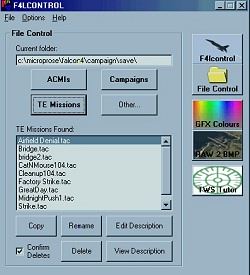 Figure 2. I hope that the F4LCONTROL description I have created will become a standard for transferring mission briefings and/or file descriptions. The file description is flexible, easy to create, and tidy. Entering an email address or a web-site address automatically creates a hyperlink that allows you to mail that address or view the web site. You can also add text after selecting the appropriate heading with one of four buttons, and the text you input is called up when the user clicks on the particular button.
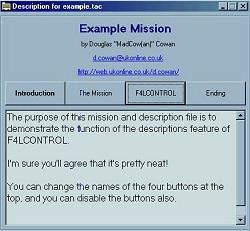 Figure 3. |
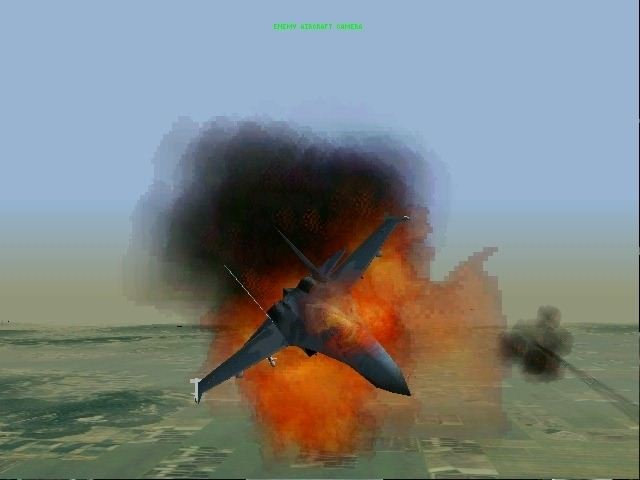 Su27 Kill. Click for larger. Graphics Color Alteration As you may know, it is possible to change the colours in Falcon by editing a file called "tod.lst" in your installation folder under terrdata/korea/weather. F4LCONTROL provides an excellent interface for changing sky color and altering the seasonal feeling of the environment. With this component of F4LCONTROL you can alter the sky haze, sky and ground colors, ground haze, ambience and diffusion of light, number of stars, sunset and sunrise shades, and texture lighting for eight different times of the day (Falcon computes the gradual change throughout the day from these 8 main settings). Superb simulations of seasonal change can be made using this feature. Changing the texture lighting to a blue hue makes the environment look very cold. If you prefer, you can create effects like Falcon4 on an acid trip -- but that's just being silly! Of course you can swap to the default installation settings, or the Skyfix (by GTT) settings again at any time and you can save the color creations you make. Screen Shots and Image Management
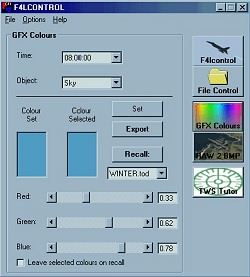 Figure 4. Screen shots in Falcon4 are generated by a press of the Print Screen key, creating a .RAW format image in your Falcon4 directory. These images must then be converted using a program like Paint Shop Pro. But if you have forgotten the screen resolution used when you generated the image, it can be a royal pain to read and then convert the image to a gif or jpg. F4LCONTROL provides an easy-to-use interface for the conversion of RAW files. There is a "Convert All" option to convert every RAW file that the utility finds, and then place all images in a folder which you specify. Neither does it matter what resolution the screen shots are in; F4LCONTROL will convert them all automatically. The DOS-based RAW2BMP converter I've written is embedded in F4LCONTROL and it is much faster than the version available on this site at present. It takes a couple of seconds to convert a 640x480 RAW file on my P200 to a BMP and the BMPs are now correctly positioned horizontally.
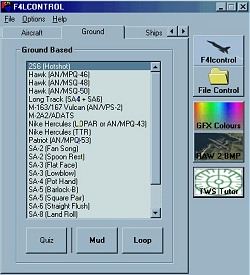
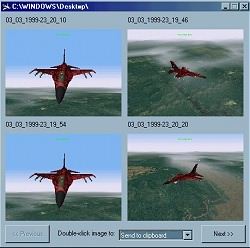 Figure 5. Notice the "Manage BMPs" button in Figure 5 above. This is a browser which creates smaller images of the BMP files found in a directory. This is useful if you've just batch converted 30 RAW files to a temporary folder. You can view them four-at-a-time in the manage BMPs screen and discard the ones that aren't any good by selecting "delete." Other options in the Manage BMPs Window are: "Copy to Clipboard, Rename, Copy and Open as Full Size." 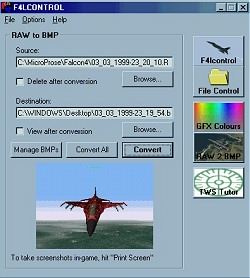 Figure 6. The good old TWS Tutor -- my first utility for Falcon. TWS Tutor is a learning assistant for the threat warning system found in the F16 (see your Falcon4 manual for information on the working of this system). The TWS Tutor in F4LCONTROL is now complete: it includes ships, which previous versions have not included.
 Visit Doug's site: Falcon 4 To download F4 LControl click here: F4L Control 1.9 meg.
|
|||
|
© 1997 - 2000 COMBATSIM.COM, INC. All Rights Reserved Last Updated March 4th, 1999 |
||||
