|
Programming with Saitek Gaming Extensions
Kurt 'Froglips' Giesselman |
||||
|
The command file editor has two modes, Simple and Advanced. These labels are somewhat a misnomer as both modes are necessary to build all but the simplest command file if you want it to perform properly. To build a simple command with any combination of keypresses, concurrent (SHIFT b) or sequential (CTRL z then r) begin by selecting the 'New' command from the File dropdown menu. Enter a name for your command. Click on the View box. Select the Simple Editor. Click the mouse cursor in the empty space just below where you selected Simple Editor mode (a blinking cursor will appear). Type your keystroke combo or sequence. If you make a mistake just click on the keystroke (highlighting it), then right click on the highlighted area to see a menu with a 'clear' function.
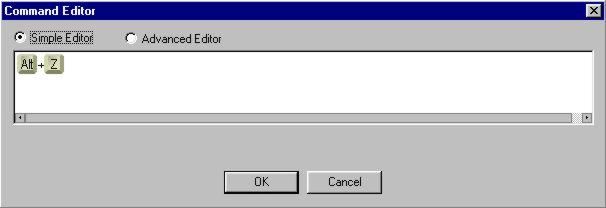 Fig 1. Command Editor-Basic. Next, select the Advanced Editor mode. The display now shows the keys pressed, in the order you pressed them, with any delay between pressing different keys. It also shows the release keys and provides the options to add repeats, delays, and lots of other functionality.
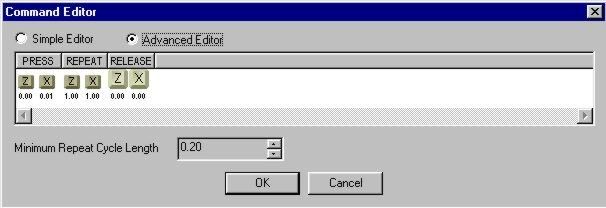
If you pressed a combination of keys or a sequence of keys SGE captures the difference in the time of the key press (Oh, you didn't press CTRL and b within 0.01 seconds of each other?). The delays that SGE captures can have some unexpected results in your HOTAS setup that may not be desirable. That unexpected three-second delay when you press the chaff button on your HOTAS might be fatal. Thank goodness it is only a simulation. Fortunately it is easy to remove the delays from the key presses when they are not required for some special function. Look below the keystrokes that you have just programmed into the command editor. You will see will see some very small font numbers in the format X.XX (where X is a number 0-9). Most of the time we want these numbers to read 0.00 unless we are doing something that requires a delay (For example, in Falcon 4.0, eject a flare every two seconds as long as the button is depressed).
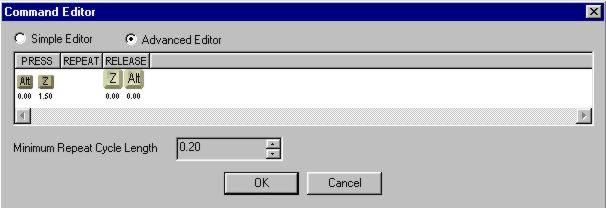 Fig 2. Command Editor Advanced-Before.
Select the Advanced Editor. Position your mouse cursor under any letter where to numbers under the keystroke are not 0.00, look for the cursor to change shape to a tiny clock, hold down the left mouse button, and move the mouse to the left. The numbers will decrease until they reach 0.00. Sometimes, you will have to release the left mouse button and move back under the keystroke icon and repeat the process if large numbers showing in the delay.
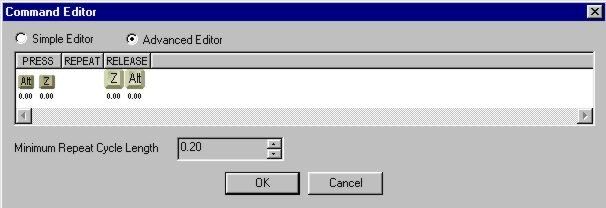 Fig. 3. Command Editor Advanced-After. |
In the Advanced Editor you see that each key press actually has a 'Press' and 'Release' phase. There could be games that require a certain duration key press to be recognized. By placing your cursor under the first key (Z in this example) in the release phase and increasing the delay (hold right mouse button then drag to the right) you can easily change the amount of time a key is held down. The Advanced Editor is the place to program key repeats for things like MFD cursor movements. Click your cursor over the blank 'Repeat' section. When the blinking cursor appears just enter the keystroke you wish to have repeated. You can modify how rapidly a key press repeats. The minimum is defaulted to every 0.20 seconds. This feature was very useful in Falcon 4.0 where the Maverick and GBU FOV cursors slew at warp ten sometimes. I reset my repeat rate to 0.50 seconds and found I have much better control over the Maverick and GBU FOV displayed on the MFDs. You can create your own auto chaff and flare command with any period of time between the ejection of the chaff and flare.
In this example, a single chaff and flare are ejected simultaneously every one second as long as the button assigned to this function is held down. In part two of this article, I will show you how a single button press can eject five chaff and five flares with a one second interval between them (great for egressing from an Air to Ground strike or that hard turn into an incoming SAM). This ends the basics for the command editor. Stay tuned for some really great tricks in the next article.
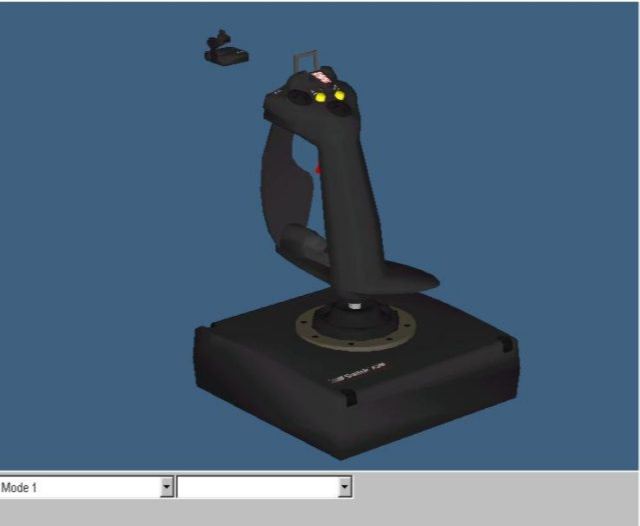
Ready for some fun? This is the place. While setting up the command file hardly rates high on the fun meter, using the SGE GUI (graphic user interface) to setup the commands that each of your 6 axis and 72 buttons (24 times 3 modes!) will send to your favorite game is as easy as one, two, three.
|
|||
|
Copyright © 1997 - 2000 COMBATSIM.COM, INC. All Rights Reserved. |
||||